Column types and validation in SkanMate
Column types and validation rules help ensure that data is recorded correctly. In SkanMate you can define field types and set up validation so your data has a consistent structure and high data quality.
It minimizes errors, saves time on post-processing, and ensures consistent data across the entire organization.
Column types
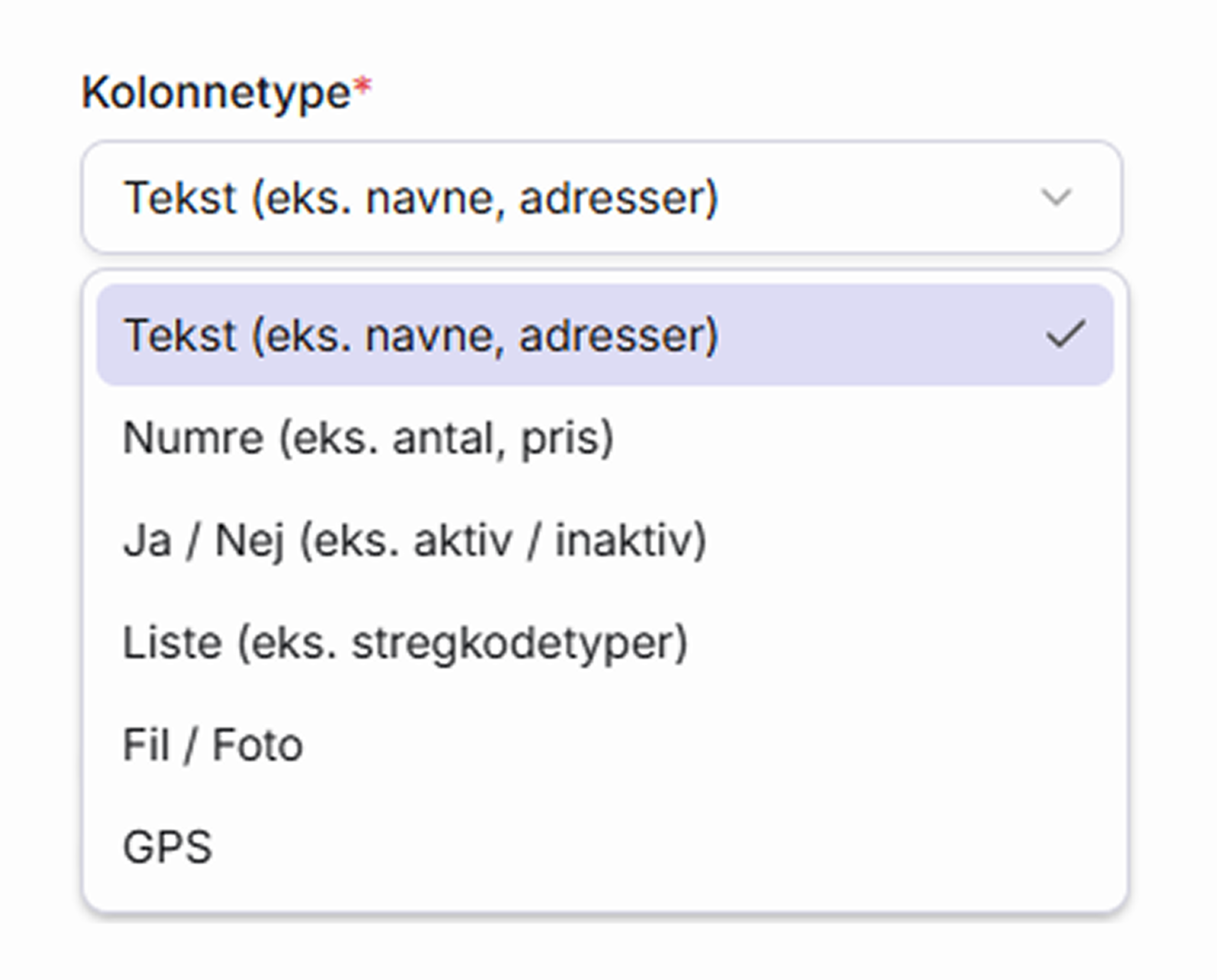

Text
One of the most commonly used column type, which can hold letters, characters and numbers. Suitable for everything from names to notes and is often combined with validations.
Numbers
For input fields where only numbers are allowed. Most suitable for quantities, prices and values.
Yes / No
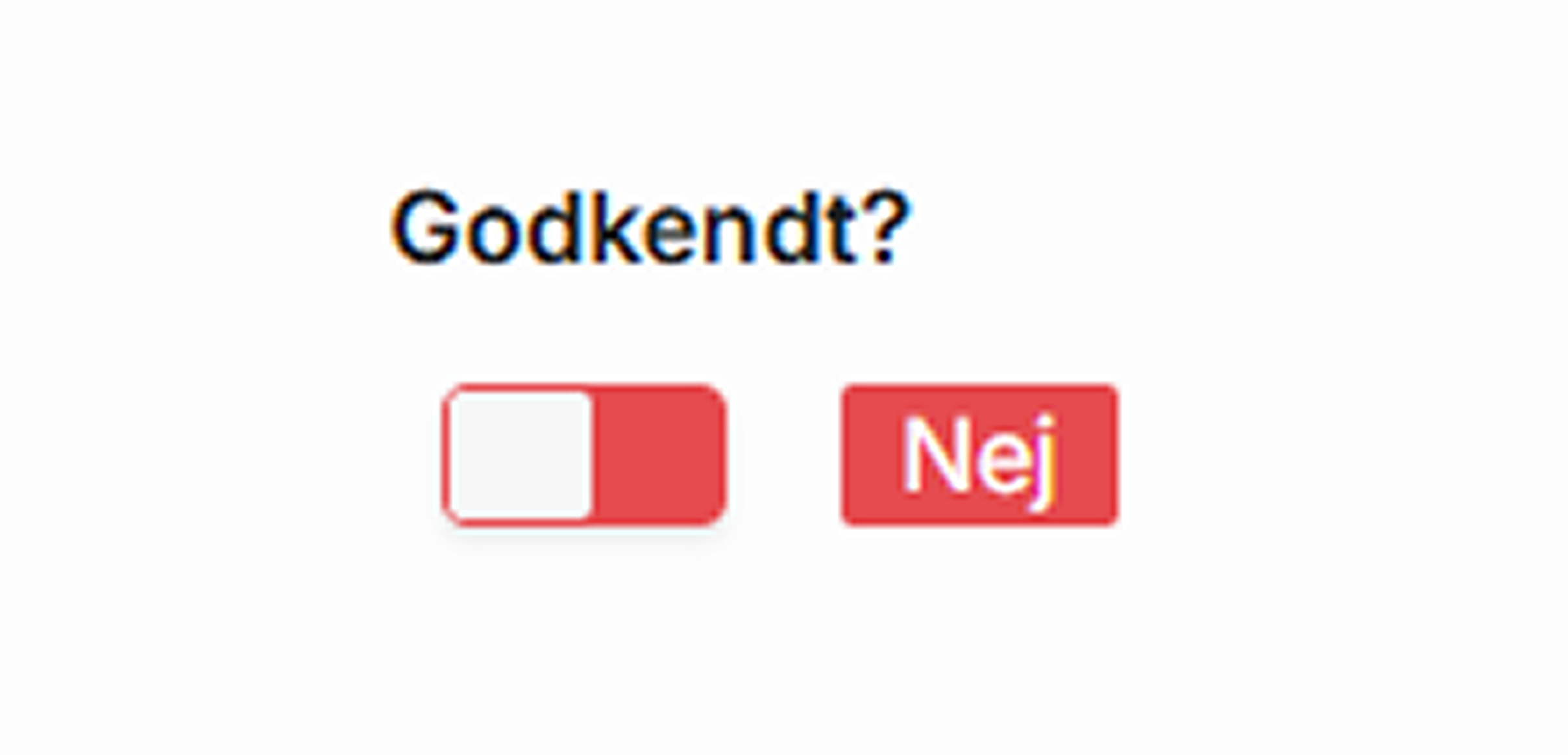
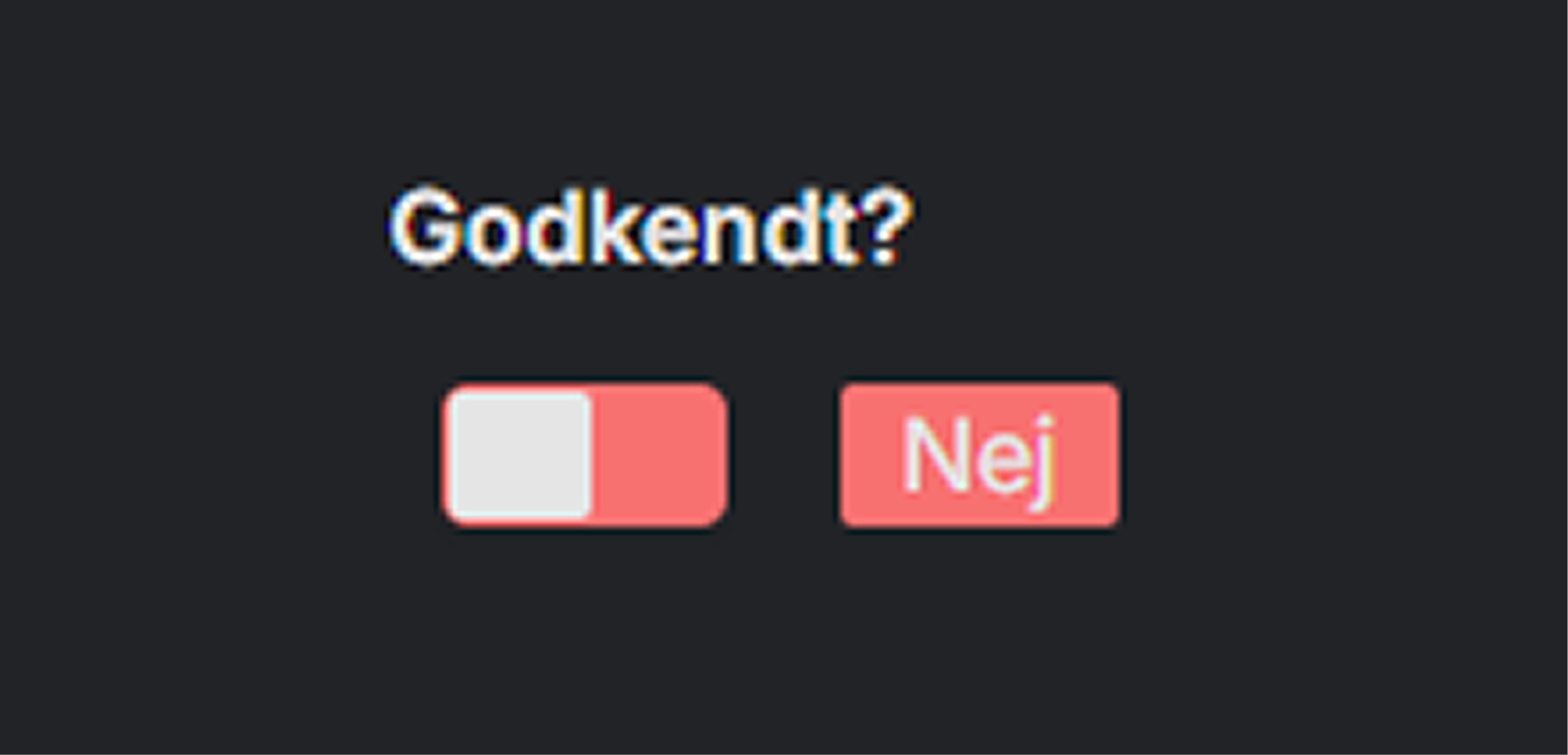
Efficient column type for simple checkpoints. Name the column so it becomes intuitive for the user e.g. "Approved?"
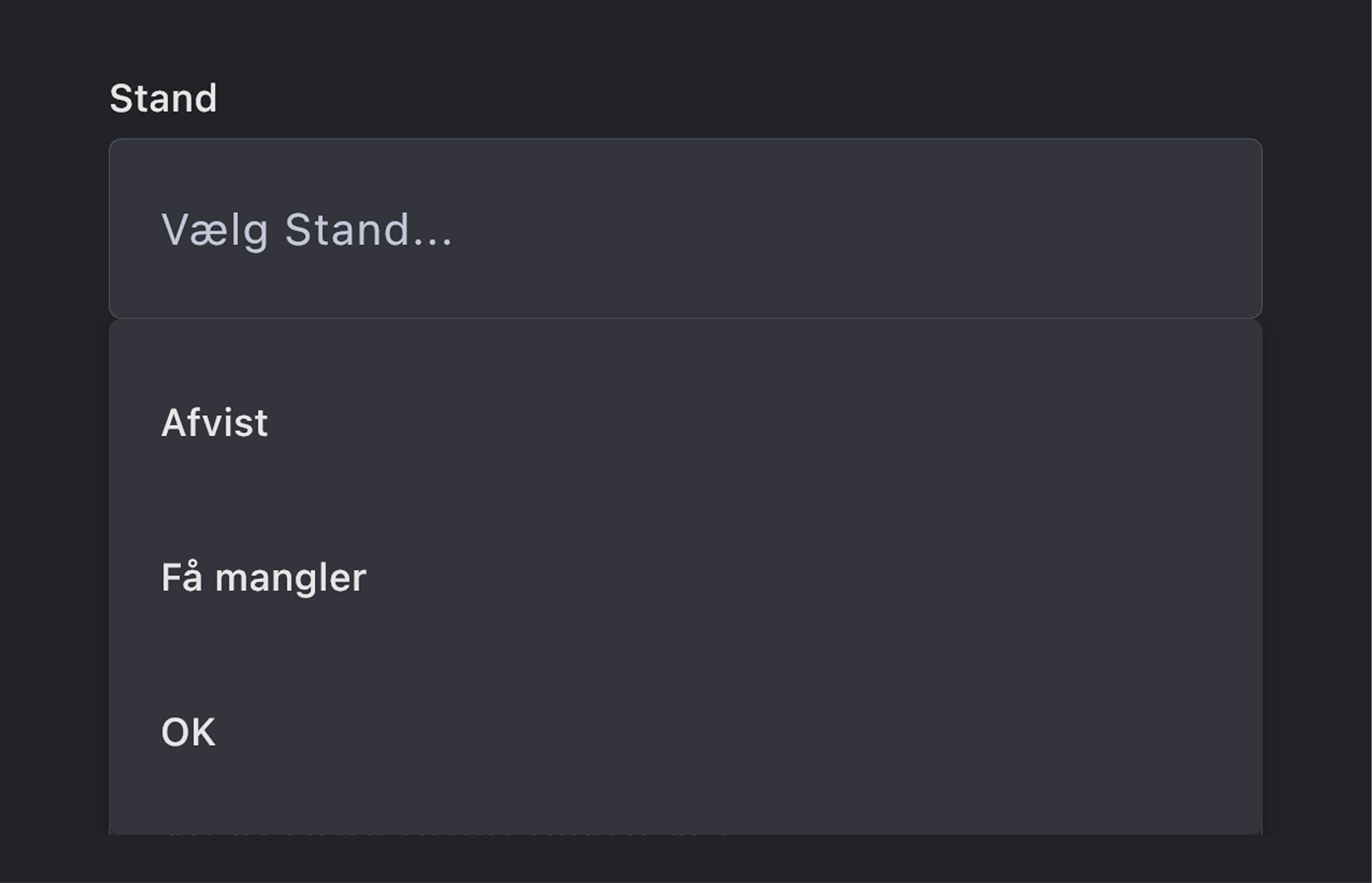
List
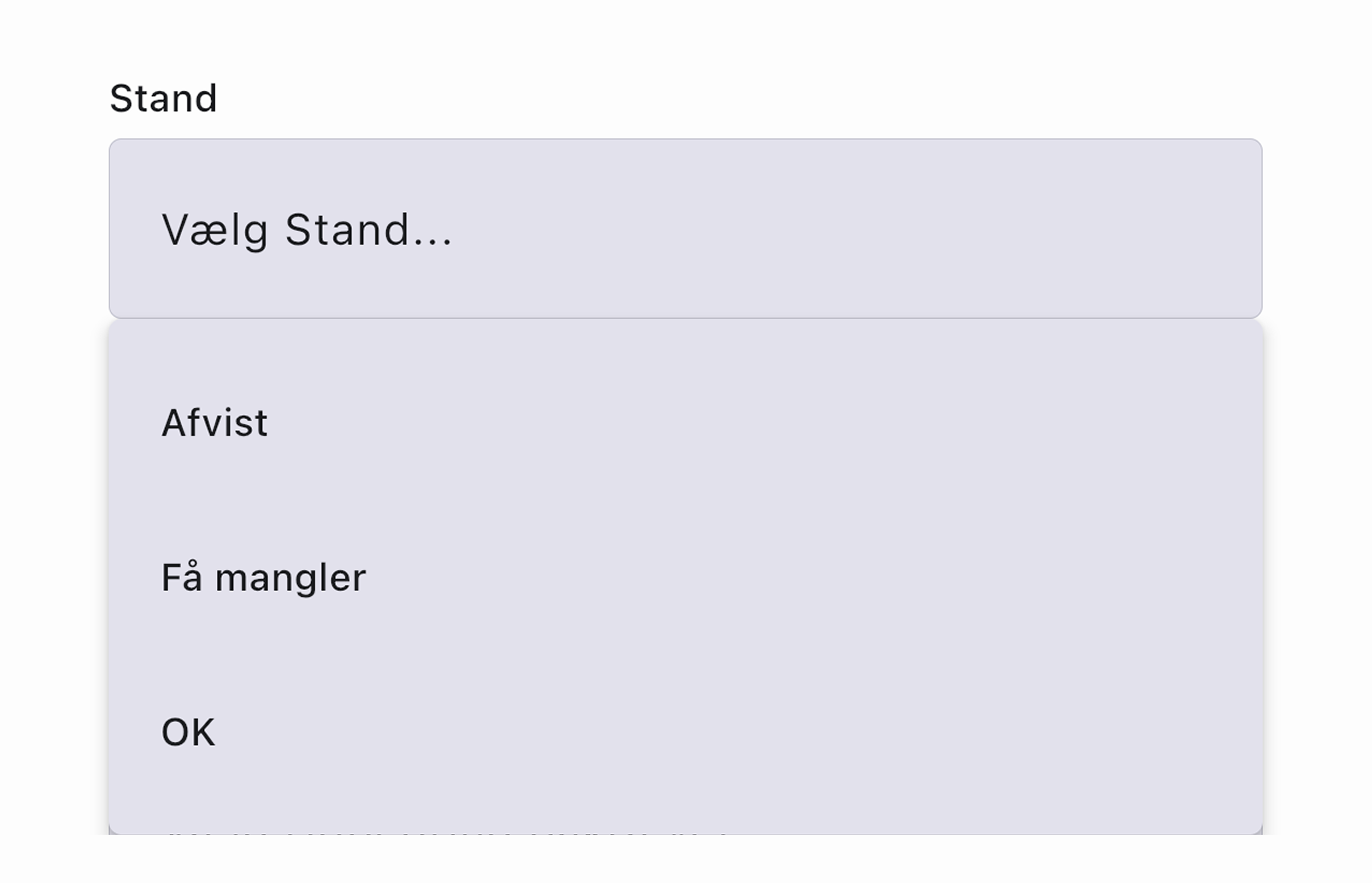
With "List" you create a set of fixed options that on mobile appear as a "DropDown" list. You define whether the field is required.
File / Photo
This column allows saving photos and files. On mobile the camera function is automatically activated and the user can either take a picture or select one already on the device. For each column a maximum of 5 images can be taken.
GPS
The name says almost itself. If you add the GPS column type, the mobile automatically adds GPS coordinates to each record.
Validations
In SkanMate you can add validation rules directly to your fields. It ensures that users can only enter valid values – both in the mobile app and in the web interface.
It minimizes errors and saves time on post-processing, while also strengthening data quality across the entire organization.
Required
Make the field mandatory so the user cannot save the record without filling it.
Minimum and maximum length
Limit how short or long a text value may be. Used to ensure consistent and usable text fields.
Minimum and maximum value
Specify which numeric values are allowed. Prevents unrealistic or invalid numbers.
Pattern
Advanced validation based on regex patterns. Provides maximum control over the format.
Unique value
Ensures that a value can only be entered once in the table. If the value has already been used in another record, it cannot be saved again.
Default value
Specifies a default value that is automatically inserted into the field if the user does not enter a value.
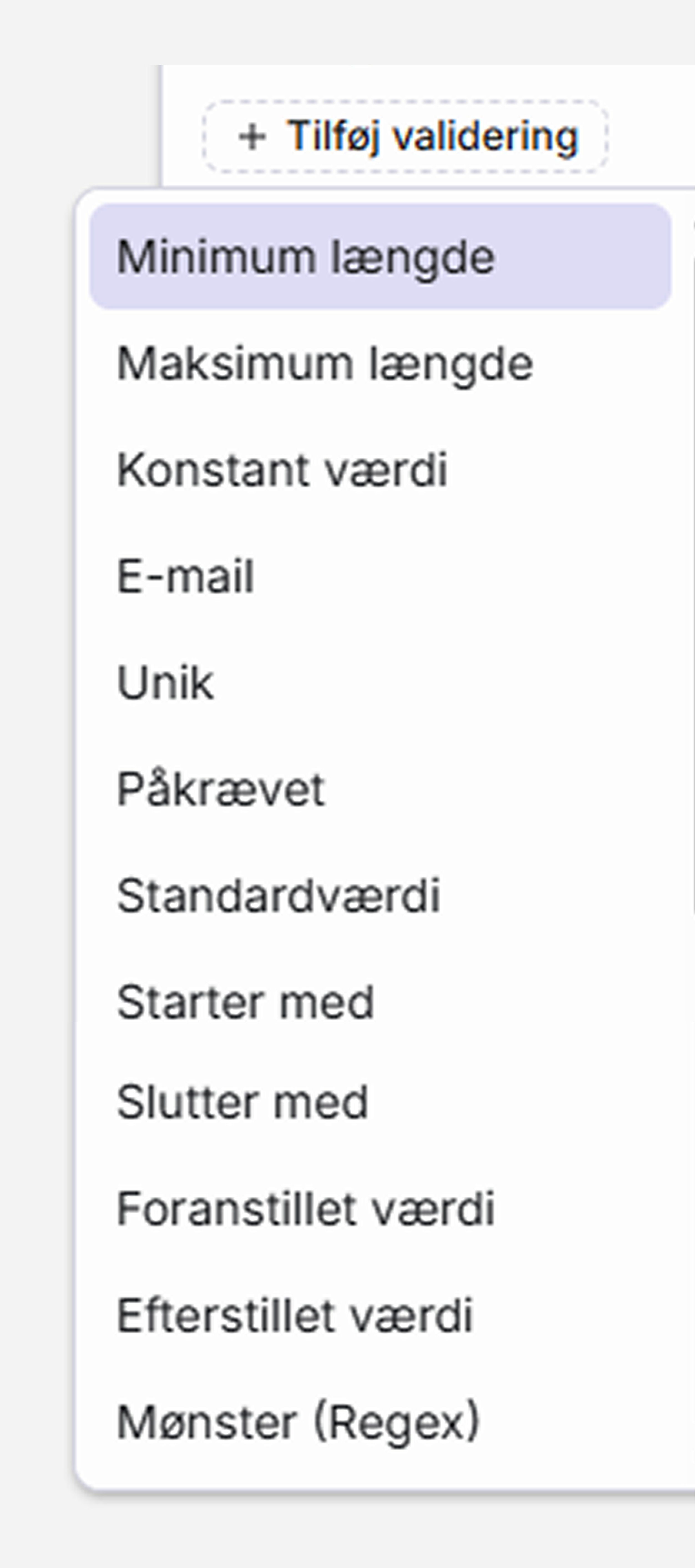
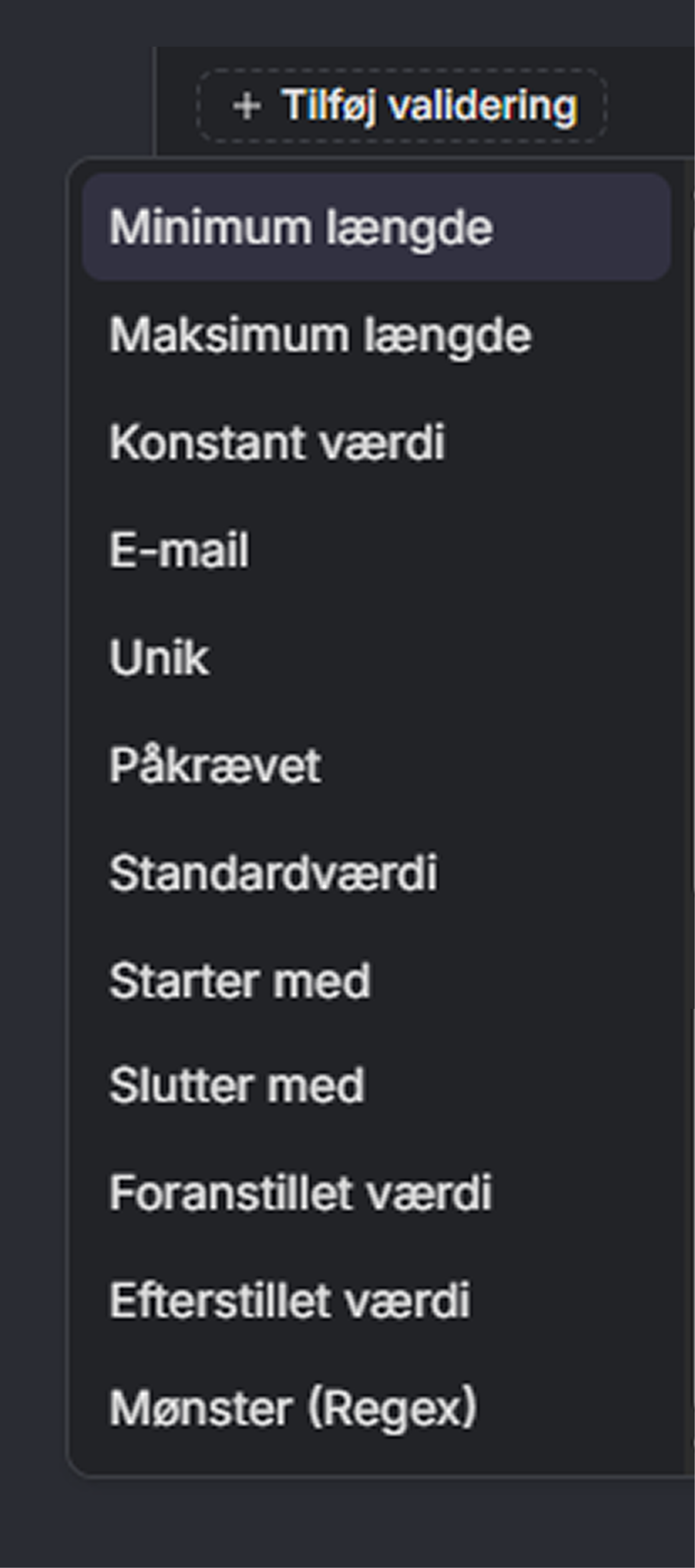
Fixed value
Locks the field to a specific value. Used when data must be consistent across records.
Email format
Ensures that a text value is a valid email address.
Starts with / ends with
Validates that the text begins or ends with a specific string. Suitable for codes and standardized names.
Prefix and suffix
Automatically adds a fixed text before or after the user's input.
Automatic fields
- Timestamp: Created automatically and can be unique.
- User: Automatically linked to the user who creates the data.
Related features in SkanMate
Build and customize tables visually on the web – with live preview in both app and web. Fast, intuitive and completely code‑free.
Create your own mini‑apps without code. Customize fields, structure and access – fast and flexible, directly on the web.
Share tables securely with others via readable links – no login and no edit access. Choose what to display and for how long.
Har du spørgsmål?
Så tøv ikke med at kontakte os. Vi er altid friske på at snakke om SkanMate.

